 Playtimely
Your iPhone or iPad
Sign in to the parent website in Safari. You do not need to pair your own phone or install a computer app to manage the family.
Use Safari on your iPhone or iPad to manage connected computers and Android devices. Change the routine, review extra-time requests and keep the family’s rules in one place.
Parent access in Safari available now
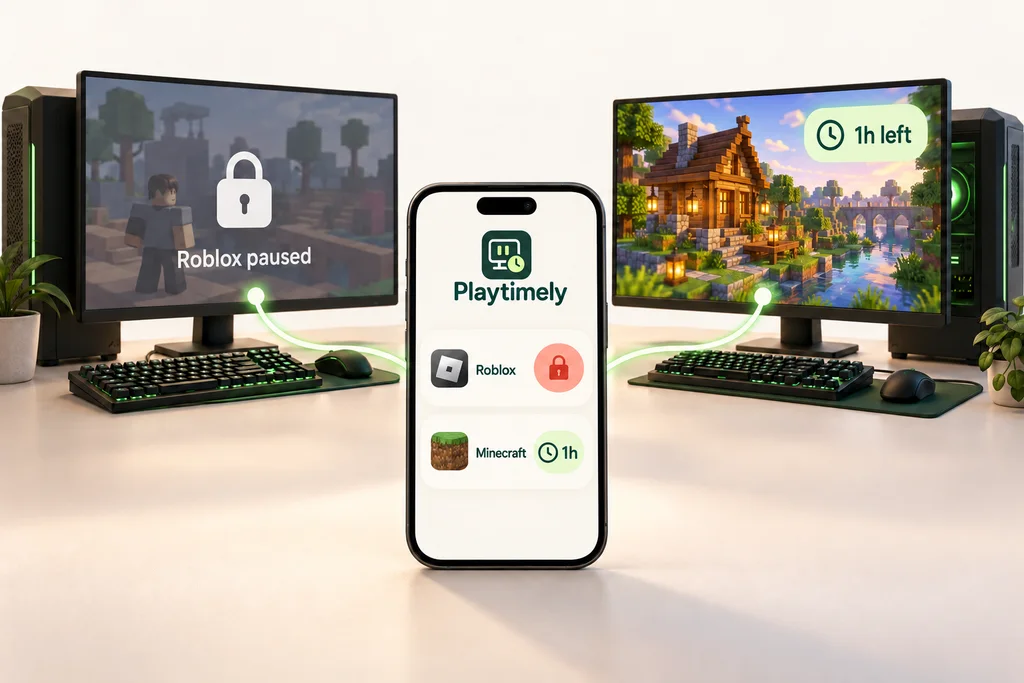
Sign in to the parent website in Safari. You do not need to pair your own phone or install a computer app to manage the family.
The app on each gaming device applies its rules. Controlling a child’s iPhone or iPad is a separate capability that is still awaiting Apple approval.
Adjust the rules for a connected device from your phone. The device must receive the change before it takes effect. Check its latest report if you need to know whether the new routine has arrived.
When a child sends a playtime request from a supported computer, it appears in your family view. Read the request and choose whether to give more time. The existing rules continue until an approval reaches the computer.
Invite your partner rather than sharing a password. Parents with permission to edit can manage the same family from their own phones or computers. A view-only role is available when someone should see, but not change, the rules.
You only need your parent account and Safari. The installation belongs on the devices whose games or apps you want to limit.
Go to playtimely.com and sign in with Google or your email address and password. Use your parent account. There is no connection code to enter for access to the family website.
Open My family and select a connected computer or Android device. If you have not connected one yet, use its platform guide; adding your iPhone is not needed just to use the parent view.
Choose the supported controls for that device, save your change and look at its latest report. If the device is offline, it needs to reconnect before the new rules can arrive.

The family website works in Safari today. Restricting apps on a child’s iPhone or iPad still requires Apple approval and is not available through Safari. App distribution and downloads have their own availability on the Downloads page.
Use the same parent account on your phone and computer to see your family. If you sign in with another account, it needs its own invitation to join. Do not give the child your parent sign-in.
Yes. Your parent device and the child’s device do not need to use the same operating system. The child’s device needs its own supported setup, and the controls shown depend on that device.
Not for parent access. You can use the family website in Safari now. Check Downloads for the current availability of native apps rather than waiting to start using the browser.
No. The parent website does not apply iOS app restrictions. Child-device iOS control is still awaiting Apple approval; signing in to Safari or adding an iPhone to the family does not enable it.
A computer may be asleep, offline or not reporting. Check its latest connection and rule-receipt status. Bring the gaming device online and let its Playtimely app fetch the change.
Yes. Open Playtimely in Safari on the iPad and use the same parent account. The family view adapts to the larger screen.
 Playtimely