 Playtimely
ILLUSTRATED EXAMPLE
Give it a time window
Choose the days and hours when this game can run. Outside those hours, the schedule blocks it.
6:00 PM–9:00 PMHOW PLAYTIMELY WORKS / 03
Choose when games can run and how much gaming fits the day. Start with a simple routine, then leave yourself room for the occasional extra few minutes.
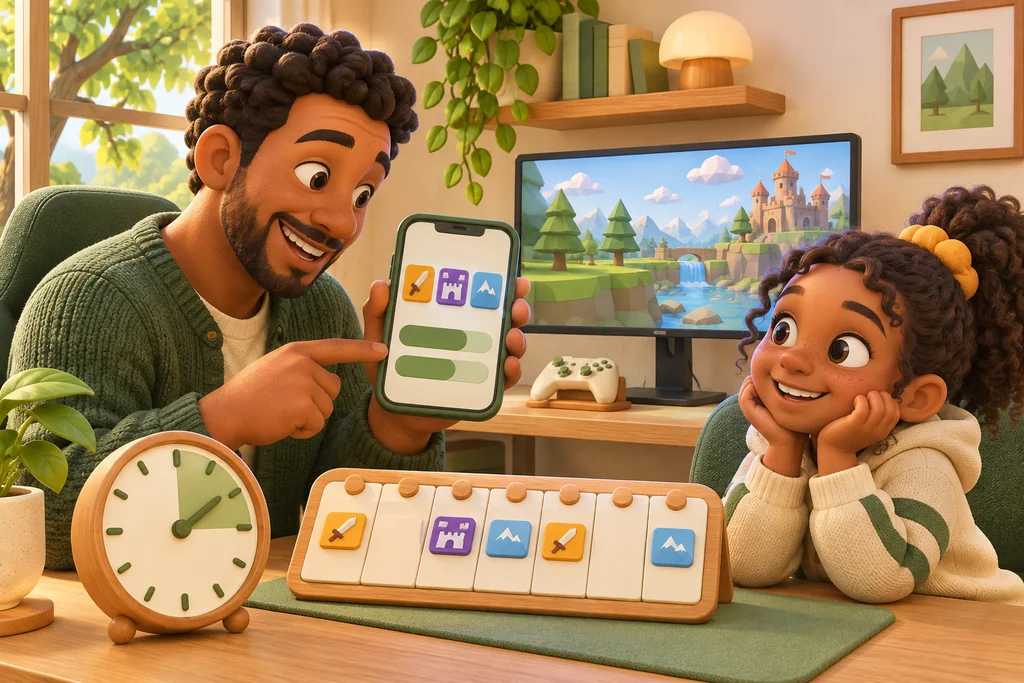
ILLUSTRATIVE EXAMPLE
A schedule defines the hours when a game is allowed. A daily budget defines how much time can be used. You can combine them: a three-hour gaming window does not have to mean three hours of play.
DIFFERENT GAMES. DIFFERENT BOUNDARIES.
Set the rule that fits the game. Keep a daily budget alongside it when you also want a limit on total playtime.
Choose the days and hours when this game can run. Outside those hours, the schedule blocks it.
6:00 PM–9:00 PMBlock this game without changing the rules for the rest. Change the rule when you want to allow it again.
This game is blockedGive this game no individual schedule restriction. A shared rule or daily budget may still apply.
No individual schedule03 / Choose games and hours
Open the connected device’s card and search the catalogue. Add an individual game rule, or choose a shared rule for known games in the Windows app. Games outside the catalogue are not automatically detected.
Choose blocked, allowed or a schedule with weekdays and time periods. Add a daily budget if you also want to limit total playtime, and check whether it covers selected games or all known games.
Use Add time to increase today’s budget without changing tomorrow’s base limits. You can also choose how the daily budget ends: reminder, continue running games, ten-minute grace period or closure. Schedules and explicit blocks still apply. Check the device’s connection and rule receipt after saving.
The dashboard shows the computer’s latest contact and whether it has received your changes. Offline computers keep the last rules they received.
Choose the game from the catalogue. Different store editions and launchers can use different game files. If a game is missing, send us its name, platform and launcher so we can review it.
Request a game →Not necessarily. A shared known-games rule or a daily budget that covers the game can still apply. On Windows, an enabled pre-game checklist can also apply.
Choose a reminder, let current game processes continue without new starts, allow one ten-minute grace period, or close controlled games. Continuing a game does not mean detecting the end of a match; schedules and individual blocks still apply.
Your next step