 Playtimely
HOW PLAYTIMELY WORKS / 02
Your phone sets the rules. Their device follows.
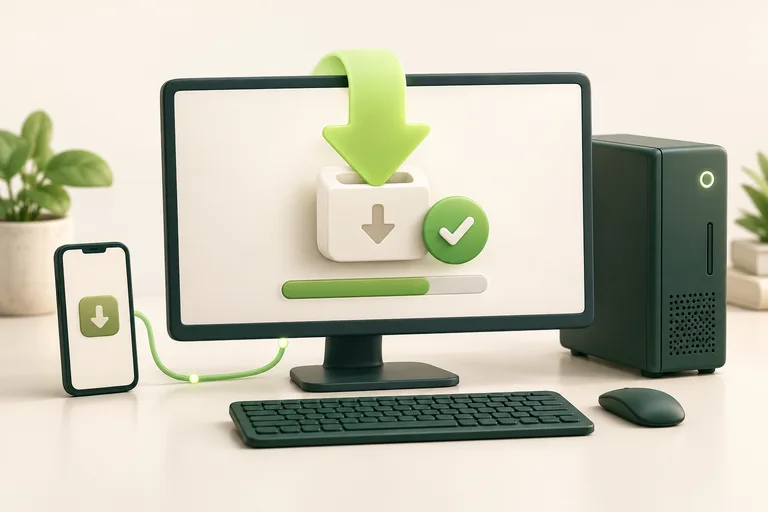
The parent view and the gaming device have different jobs. Manage the family wherever it suits you; install the control app on the device where the games are played.
ILLUSTRATIVE EXAMPLE
Two devices. Different roles.
You can use the browser on your own phone or computer to manage the family. The app on the gaming device receives your saved rules and applies them there. Installing a parent app on your phone does not, by itself, connect the child’s computer.
 Your phone or browserYou choose the rules
 The gaming deviceThe installed app follows them
02 / Connect the device
A small step at a time
- 01
Add the device once
In My family, choose the device type and give it a name you recognise. If you are on your own phone, you can still add the gaming computer now and continue on that computer later.
- 02
Continue on the gaming device
For Windows, open your dashboard on the gaming computer, sign in and choose Continue setup for the device you already added. Download its personal installer, approve administrator permission and follow the install steps. Keep the personal installer private.
- 03
Wait for its first connection
Keep the gaming computer online until its card confirms a connection. You can then save game rules. After installation, sign out of your parent account on the gaming computer; the installed service keeps working independently of the browser.
Choose the guide for the right platform.
The steps above describe Windows. Android has its own on-device setup and permissions. macOS distribution and child controls on iOS are not yet generally available; check the platform guides and downloads for the current options.
Good to know
I added the computer on my phone. Should I add it again?
No. Sign in to the same family on the gaming computer and use Continue setup on its existing card. Adding it again creates another device rather than finishing the first setup.
Can I use a USB stick?
Yes. The Windows setup card explains how to download the personal installer and copy it to the gaming computer. It belongs to that one device and should not be shared publicly or reused for another computer.
Your next step